Android’s Smart Lock feature has a new name: Extend Unlock. The change is meant to explain what the setting actually does, since it does not lock your phone more often. Instead, it lets the phone stay unlocked under selected conditions after you unlock it once.
The feature launched in late 2015 and originally carried the Smart Lock name. Back then, Android described several ways to keep a phone unlocked, including keeping it unlocked while it was being held, in trusted locations, or near trusted devices. In 2023, Android relabeled the setting as Extend Unlock to better illuminate its true purpose.
What Extend Unlock Actually Does
Some Android settings protect a phone by making sure it locks. Extend Unlock takes the opposite approach: it keeps the phone unlocked under selected conditions. That means you do not have to re-enter your PIN each time the chosen condition remains active.
Extend Unlock offers three options: On-body detection, Trusted places, and Trusted devices. Each option covers a different situation, so the setting can match how you use your Android phone.
- On-body detection keeps your phone unlocked while it is on your person.
- Trusted places keeps your phone unlocked in the locations you add to that section.
- Trusted devices keeps your phone unlocked when it connects to a trusted device through Bluetooth.
The convenience comes with a clear security warning. Your phone can remain unlocked in a trusted place even when someone else has it, and the same concern applies when it connects to a trusted device. The devices and locations you choose matter, especially if you want to keep your Android phone secure.
To set up the feature, open Settings > Security and privacy > More security and privacy > Extend Unlock. From there, you can customize which of the three options you want to use.
Why “Extend Unlock” Fits Better Than “Smart Lock”
The old name was not completely without logic. “Smart Lock” suggested that the device could recognize when it should stay unlocked. But the name also placed the setting among other features described as “smart,” which made its specific job less clear.
“Extend Unlock” describes the result in more direct terms. The setting extends the time your phone can stay unlocked under selected conditions, but only after you have unlocked it once. Either name fits, but the newer name tells users what the toggle does before they open it.
That distinction matters because unlocking and staying unlocked are different actions. Extend Unlock handles the second one. It does not replace the act of unlocking the phone in the first place.
How Watch Unlock Is Different
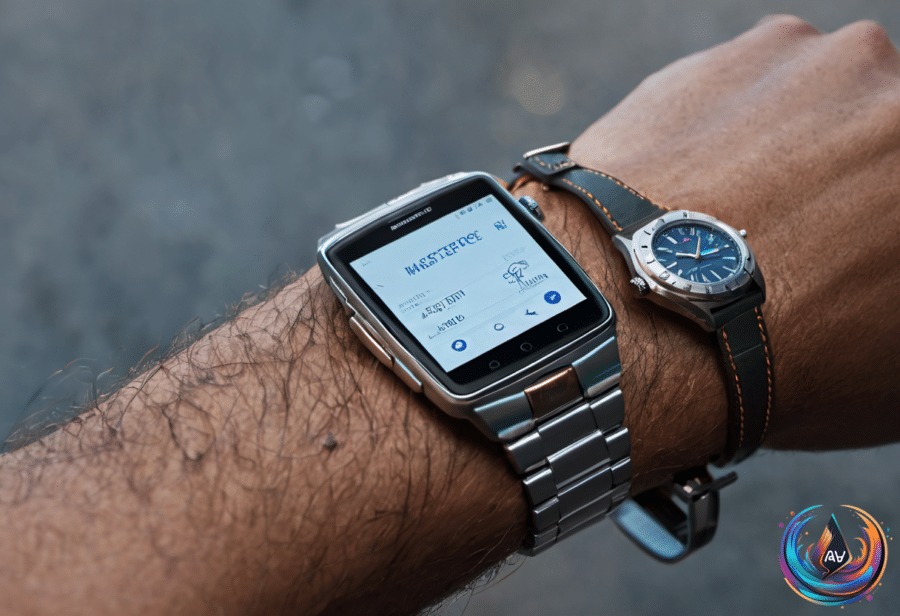
The name change also appeared alongside the development of Watch Unlock. The two features have related names, but they perform different jobs. Watch Unlock unlocks your phone, while Extend Unlock keeps it unlocked.
On the Pixel side of Android, Watch Unlock can be set up through the Watch app. Go to Watch preferences > Security > Watch Unlock, then connect a compatible paired Pixel Watch.
Watch Unlock allows you to unlock your phone when your watch is unlocked, on your wrist, and nearby. Extend Unlock, by contrast, keeps the phone unlocked when one of its own conditions is active, such as on-body detection, a trusted place, or a Bluetooth connection to a trusted device.
The similar names make the relationship easier to understand. Watch Unlock helps open the phone, while Extend Unlock can keep it open. Android’s move away from Smart Lock gives the setting a name that focuses on that difference and makes its purpose clearer at a glance.
Based on
- Why did Android change the name of its Smart Lock feature? — engadget.com
- Fixing This Annoying One UI Feature Is Easy, But There’s A Catch — engadget.com
- 10 Things You Should Never Do On Your Android Phone — engadget.com
- What The Tiny Key Icon Means On Your Android Device — engadget.com
- You Don’t Need A Foldable Phone To Use Split Screen On Android — engadget.com